
 100% written by human
When people talk about UI5 development, they usually mean one of two things: UI5 applications or UI5 libraries. But there is a third option that many developers overlook — Fiori Launchpad plugins.
Plugins run inside the Fiori shell and can extend the launchpad itself: add header buttons, register user menu actions, or simply run in the background and do their job without any visible UI at all.
Fiori Launchpad plugins require SAPUI5. They are not available in OpenUI5, because sap.ushell is not part of the OpenUI5 distribution.
In my opinion, plugins are underrated. They are lightweight, powerful, and perfect for cross-app functionality that does not belong inside a single Fiori app. Unlike a UI5 library, which every application must import and wire up individually, a launchpad plugin is activated once in the shell and applies to all running apps — including SAP standard Fiori apps and third-party UI5 applications you do not own.
Some real-world examples:
- Shell UI extensions — header buttons, user menu actions, footers, and side panels
- Usage tracking across all launched applications
- Custom reporting or diagnostics triggered from the shell
- Global utilities like a fullscreen toggle, theme helpers, or support widgets
- Background automation that reacts to app lifecycle events
Plugin Architecture — Simpler Than You Think
Architecturally, a Fiori Launchpad plugin is very close to a regular UI5 application — just without views and controllers.
You start with a component (typically Component.ts or Component.js) and implement your logic inside the init() method. From there, you can use everything you already know from UI5 app development:
- OData models and
Componentmetadata i18nresource bundles- Standard UI5 controls and libraries
- TypeScript, ESLint, UI5 Tooling, and modern project setups
- Startup parameters passed from the launchpad configuration
Just like in a regular Fiori app, you can read startup parameters inside your plugin component via getComponentData(). Configuration values from the target mapping land in config; intent-based navigation parameters are available under startupParameters (each value is an array):
| |
This is useful when the same plugin should behave differently per role, site, or inbound assignment — without hard-coding values in the component.
The same UI5 component can be registered more than once with different configuration — for example, separate target mappings per role, each passing its own startup parameters. The launchpad then creates one component instance per registration, not a single shared singleton.
Solution: Do not assume only one instance exists. Keep shell extensions idempotent, guard duplicate registrations (for example with stable IDs), and scope side effects to the current instance’s config. Even singleton-style logic must tolerate multiple instances running in parallel.
The main difference: instead of rendering a full application UI, you hook into shell services like Extension, FrameBoundExtension, AppLifeCycle, or UserInfo.
flowchart LR
    subgraph Plugin["Fiori Launchpad Plugin"]
        C[Component.init]
        E[Extension Service]
        F[FrameBoundExtension]
        A[AppLifeCycle Service]
        U[UserInfo Service]
    end

    subgraph Shell["Fiori Launchpad Shell"]
        H[Header Bar]
        SH[Sub-Header / Footer / Side Pane]
        M[User Menu]
        Apps[Running Fiori Apps]
    end

    C --> E
    C --> F
    C --> A
    C --> U
    E --> H
    E --> M
    F --> SH
    A --> Apps
Extending the Shell UI
The Old Renderer Approach
In older UI5 versions, registering shell extensions was cumbersome. You had to fetch the renderer instance manually and work with APIs that changed frequently between releases.
Typical pain points:
controlTypeand placement options changed over time- Multiple header positions (
begin,end, etc.) with inconsistent behavior - Verbose boilerplate just to add a single button
- Harder to maintain when supporting multiple UI5 versions
A example of the old pattern:
| |
It works — but it never felt clean.
The New Extension API (UI5 1.120+)
Starting with UI5 1.120, SAP introduced the dedicated sap.ushell.services.Extension API — a much clearer and more maintainable way to extend the shell.
API reference: sap.ushell.services.Extension
With the Extension API you can:
- Create header items (buttons in the shell header)
- Register user menu actions
- Show extensions globally across apps with
showForAllApps()
| |
The trade-off: placement is more opinionated. Header items are supported at the end position, and user menu entries are first-class citizens — but you no longer get the old free-form renderer positioning.
More samples are available on the Extension API documentation page.
FrameBoundExtension — Footer, Side Pane, and Sub-Header (UI5 1.124+)
When you need to extend the shell frame itself — not just add a header button or user menu entry — use sap.ushell.services.FrameBoundExtension. It covers the same header and user-menu capabilities as Extension, and additionally exposes the launchpad’s structural areas:
- Sub-header —
createSubHeader()for a bar below the shell header - Footer —
createFooter()for a persistent footer bar - Side pane —
getSidePane()for left-panel content - Tool area —
getToolArea()for the right-hand tool area - Floating container —
getFloatingContainer()for overlay panels - User settings —
addUserSettingsEntry()/addGroupedUserSettingsEntry()
API reference: sap.ushell.services.FrameBoundExtension
Use Extension for lightweight shell controls (header buttons, user menu actions). Reach for FrameBoundExtension when the UI belongs to a frame area — footer, side panel, or sub-header.
| |
More samples — Footer, SidePane, SubHeader, and more — are available on the FrameBoundExtension documentation page.
Old Renderer vs. Extension APIs
| Topic | Old Renderer API | Extension (1.120+) | FrameBoundExtension (1.124+) |
|---|---|---|---|
| Service | Container.getRenderer() | Container.getServiceAsync("Extension") | Container.getServiceAsync("FrameBoundExtension") |
| Header buttons | Multiple positions (begin, end, …) | createHeaderItem() | createHeaderItem() |
| User menu | Manual renderer integration | createUserAction() | createUserAction() |
| Sub-header | Via renderer | — | createSubHeader() |
| Footer | Via renderer | — | createFooter() |
| Side pane | Via renderer | — | getSidePane() |
| Tool area | Via renderer | — | getToolArea() |
| API stability | Changed across UI5 versions | Dedicated, documented service | Dedicated, documented service |
| Recommended for | Legacy systems below 1.120 | Simple shell controls | Frame layout (footer, side panel, sub-header) |
What Else Can a Plugin Do?
Beyond adding visible shell controls, plugins can interact with the application lifecycle and user context.
React to App Changes with AppLifeCycle
If your plugin needs to know when a Fiori app has finished loading — for example to attach listeners or read the active component — use the AppLifeCycle service.
API reference: sap.ushell.services.AppLifeCycle.CurrentApplication
| |
getCurrentApplication() returns a CurrentApplication object — or undefined when no application is running:
applicationType— the technology of the active app:UI5,WDA,NWBC,URL, orGUIcomponentInstance— the rootsap.ui.core.UIComponentof the running app; only set for UI5 applicationshomePage—truewhen the launchpad home page is displayed instead of a launched app
For UI5 apps, componentInstance gives you direct access to the running application (models, views, component API). That makes it straightforward to interact with the currently open app component after navigation.
When applicationType is UI5, use componentInstance to traverse views and controls, work with OData and other models, use the in-app router, or call any public API the application exposes.
Access the Logged-In User
User information is available through the UserInfo service:
| |
Typical use cases: personalization, audit logging, feature toggles per user, or displaying context-aware shell actions.
Scaffolding a Plugin with TypeScript
Manually setting up a Fiori Launchpad plugin — especially with TypeScript, UI5 Tooling, and the correct shell integration — takes time. For this reason, I created a Yeoman generator in the UI5 Community:
→ GitHub: ui5-community/generator-ui5-ts-flp-plugin
The generator is built on top of Easy UI5 and scaffolds a ready-to-run Fiori Launchpad plugin project.
Highlights:
- TypeScript-ready project structure
- Automatic integration strategy based on the UI5 version you select
- Uses the Extension API on UI5 1.120+
- Falls back to the legacy renderer approach on older versions
- Includes shell extension sample
Quick Start
Install the generators globally:
| |
Scaffold a new plugin:
| |
Follow the prompts — especially the UI5 version — and start local development:
| |
Local Testing with the FLP Sandbox
For local development, the generator does not run the plugin in standalone mode. Instead, it simulates a Fiori Launchpad using the official ushell sandbox (webapp/test/flpSandbox.html). That way you can develop and debug against real shell services — Extension, FrameBoundExtension, AppLifeCycle, UserInfo, and the rest — without deploying to ABAP or BTP first.
The magic happens in the sandbox configuration. Register your plugin under bootstrapPlugins and point url at the webapp root:
| |
With this setup, the plugin is loaded automatically when the sandbox starts. The launchpad shell renders as usual, but no tiles or apps are configured — you get an empty home page and can focus entirely on your shell extension.
The generator wires up the correct shell integration path for your target version, so you do not have to maintain two codebases manually.
Sample Plugin: Fullscreen Toggle
To demonstrate the Extension API in practice, I built a small open-source plugin that adds a fullscreen toggle button to the Fiori shell header.
→ GitHub: mariokernich/fiori-fullscreen-plugin

The core logic loads an i18n bundle, creates a header item through the Extension service, and toggles the browser fullscreen API on press:
| |
A few things worth noting:
createHeaderItem()returns a promise — the API is fully asyncButton$PressEventgives you proper TypeScript typing for the press handlershowForAllApps()makes the button available across every launched Fiori appshowOnHome()also show button on Fiori homei18nworks exactly like in a standard UI5 application
More samples are available on the Extension API documentation page.
Deploying and Activating the Plugin
Once your plugin is built, you need to register it in the launchpad landscape.
On-Premise (ABAP Fiori Launchpad)
Deploy the plugin as a BSP/UI5 application with sap.flp.type: "plugin" in manifest.json. For the official on-premise activation procedure, see Activating Plug-Ins on the ABAP Platform.
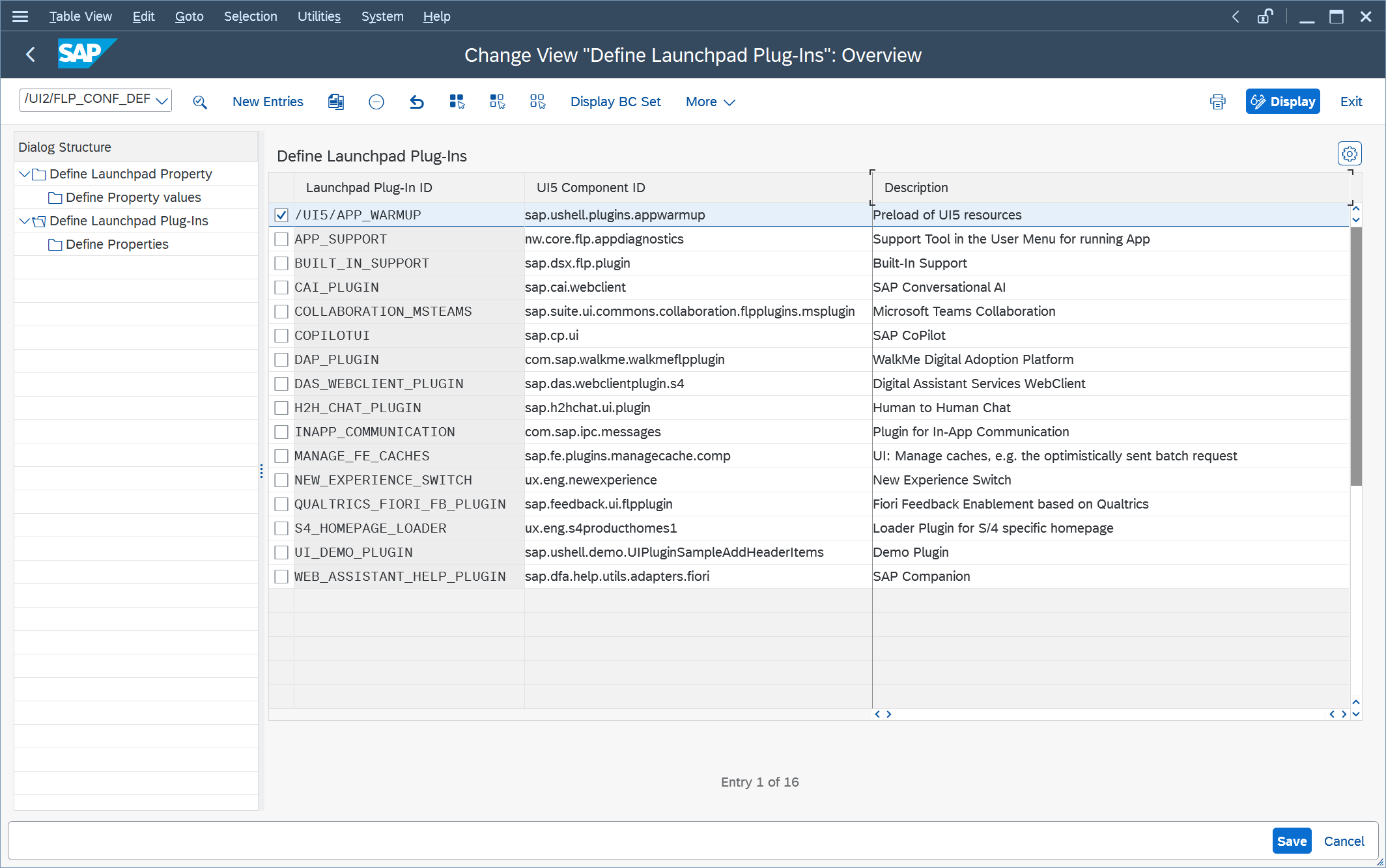
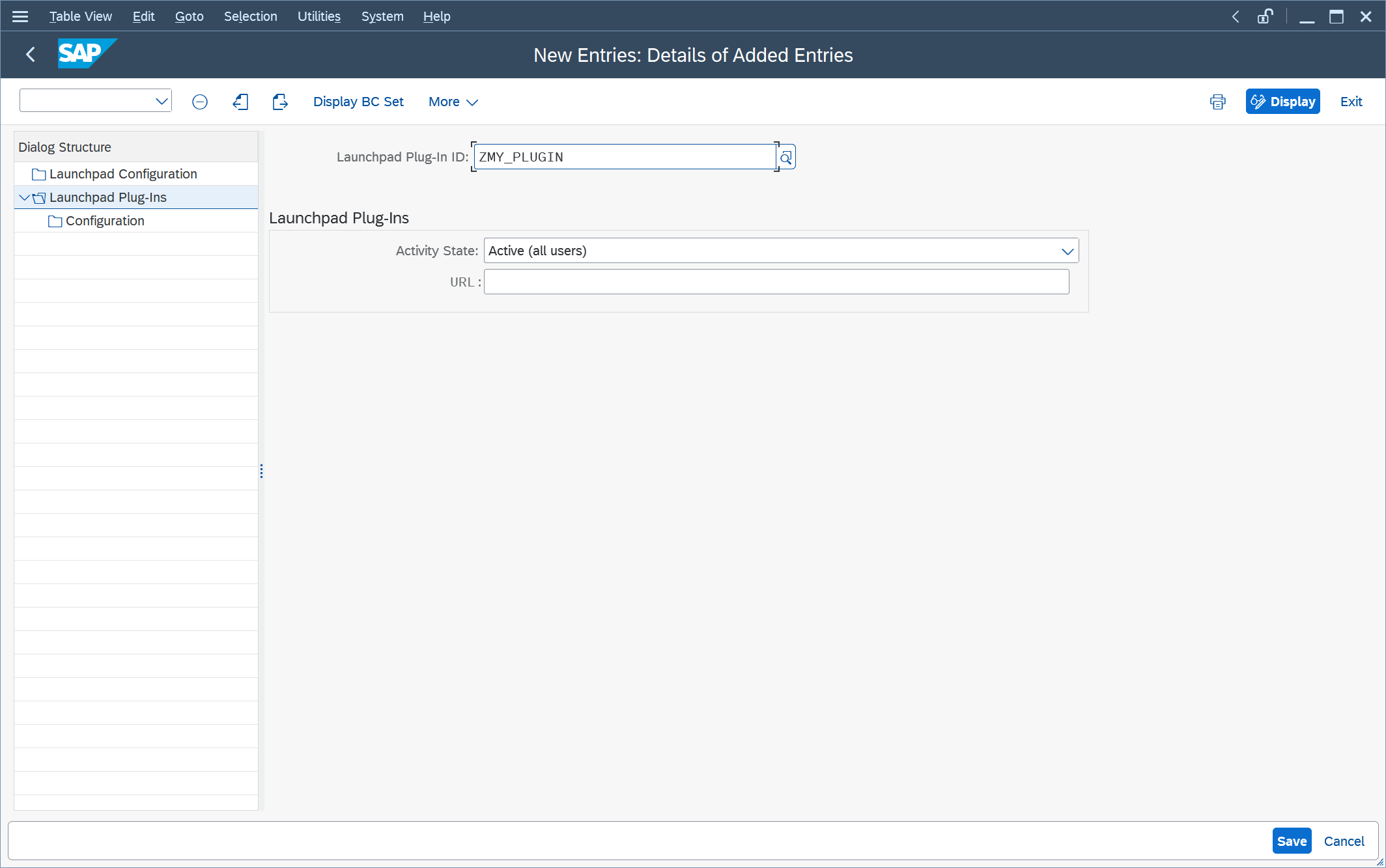
Option 1: Global shell plugin — register and activate through launchpad administrator settings. Every user loads the plugin at shell startup; no role assignment required.
/UI2/FLP_CONF_DEF— define the plug-in (ID, UI5 component, description).
/UI2/FLP_CUS_CONF— activate it and set Activity State to Active (all users).
Option 2: Role-based assignment — load the plugin only for users with a specific PFCG role. The setup follows the same catalog → role pattern as any UI5 Fiori app: you expose the plugin through a target mapping in a Fiori catalog and assign that catalog to a role. No home-page tile is required — the shell loads the plugin at startup once the user is authorized.
/UI2/FLPD_CUST(Launchpad Designer) — in a catalog, create a target mapping with intentShell-plugin(Semantic Object:Shell, Action:plugin). Set the BSP application URL and UI5 component name, just as you would when registering a Fiori app.PFCG— on the role Menu tab, add SAP Fiori Launchpad → Fiori Launchpad Catalog and assign the catalog from step 1. Generate authorizations and assign the role to the relevant users.
Only users who hold a role that includes this catalog receive the plugin. Global activation in /UI2/FLP_CUS_CONF (Option 1) is not required.
SAP Build Work Zone
- Deploy the plugin as an HTML5 application (often via MTA to SAP BTP)
- Ensure
manifest.jsoncontains:
| |
- In the Work Zone Administration Console, refresh the HTML5 Apps content channel
- Add the plugin in Content Explorer and assign it to a role (for example,
Everyoneor a dedicated plugin role)
After assignment, the plugin loads automatically when users open the launchpad — no tile required.
Conclusion
Fiori Launchpad plugins are a powerful but often ignored extension point in the UI5 ecosystem. They let you enhance the shell itself — globally, cleanly, and without touching every individual Fiori app.
With TypeScript, the modern Extension API (UI5 1.120+), FrameBoundExtension (1.124+), and a proper project generator, building plugins today is significantly more pleasant than wrestling with the old renderer APIs.
If you have a cross-app requirement — tracking, reporting, shell utilities, or lifecycle automation — a plugin is very likely the right tool for the job.
Useful links: